The Sales pipeline in Solar Saral Vyapar covers the entire process from issuing a quote to dispatching the final materials. It features strong interlocks with Finance and Inventory to ensure accuracy and limit risk.
1. Quote Creation
There are two primary methods for generating a quote:
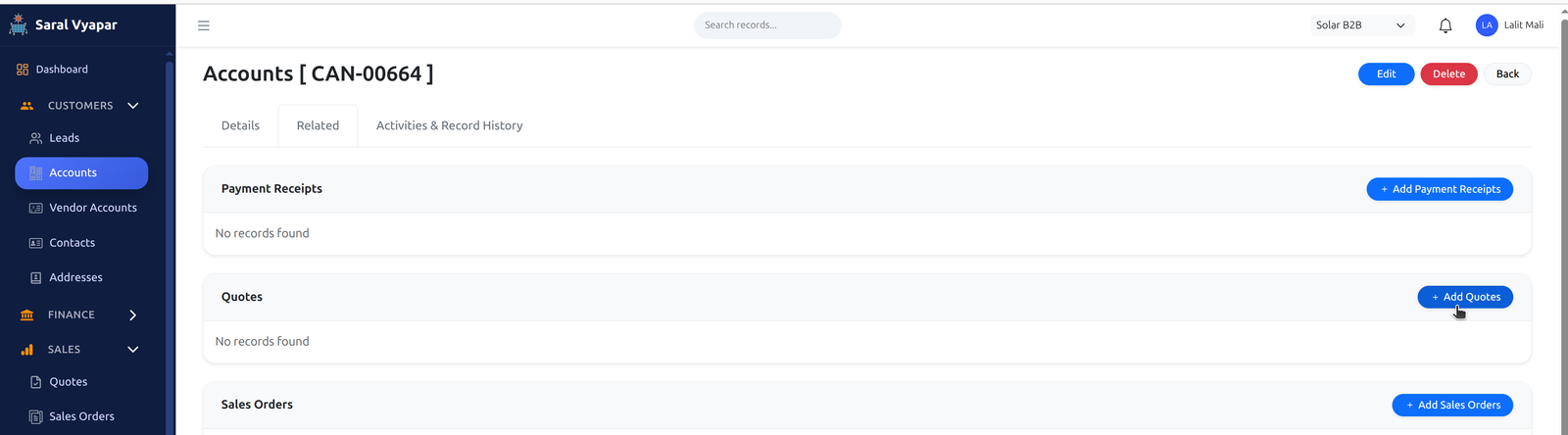
- From the Accounts Related Tab
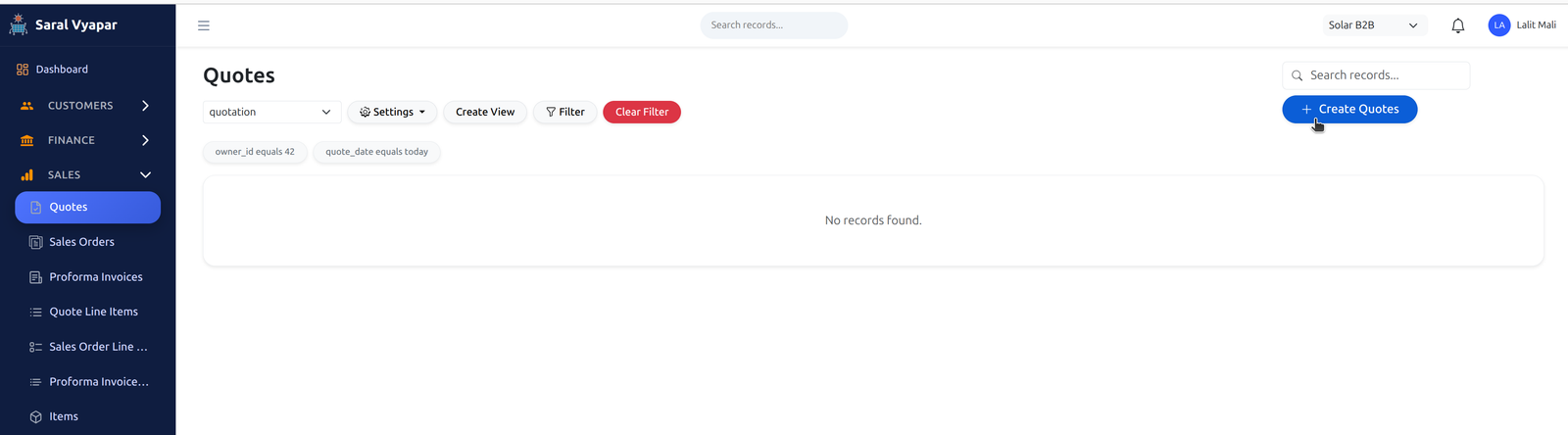
- Navigating to Sales -> Quote -> Create quote
Step 1.1: Navigating to Account
You can create a quote directly from the Account Related Tab by clicking the Add Quote button (optional but recommended).
Alternatively, navigate to Sales -> Quote -> Create quote.
Step 1.2: Filling Quote Details
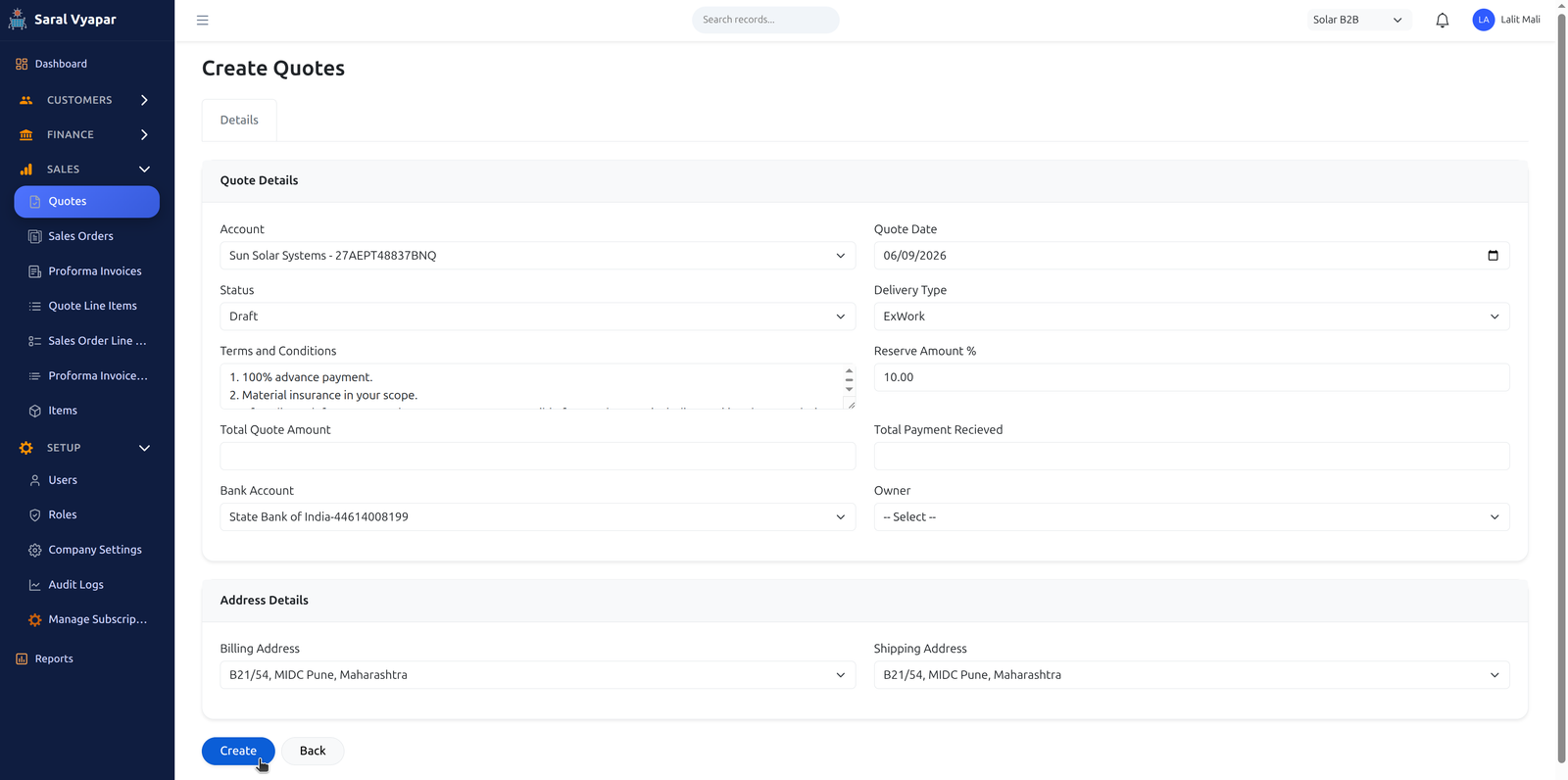
In the Create Quote screen, fill out the following details:
- Account: Ensure the proper Business Account is selected.
- Status: Keep the status as Draft.
- Delivery Type: Select the applicable terms (e.g., ExWork, FOR).
- Reserve Amount %: Specify the percentage of money to be reserved in case of partial payment during PI generation.
- Total Quote Amount & Total Payment Received: Leave these blank; they will auto-calculate once line items are added.
- Bank Account: Select the bank account where the buyer should deposit money.
- Owner: Leave unselected (the logged-in user is automatically set as the owner).
Once all details are filled, click the Create button at the bottom.
Step 1.3: Setting Addresses
Select the proper Billing Address and Shipping Address. If the required Shipping Address is missing, you must add it first by going to the Account's Related tab, clicking "Add Address," and setting the type to "Shipping."
Step 1.4: Adding Line Items
Once the quote header is saved, scroll to the bottom or check the Related tab to add items. Verify the addresses are correct.
Click + Add Item. The items listed are fetched from inventory balances. Selecting an item instantly displays the available quantity and today's quoted quantity, allowing you to ascertain the true available stock.
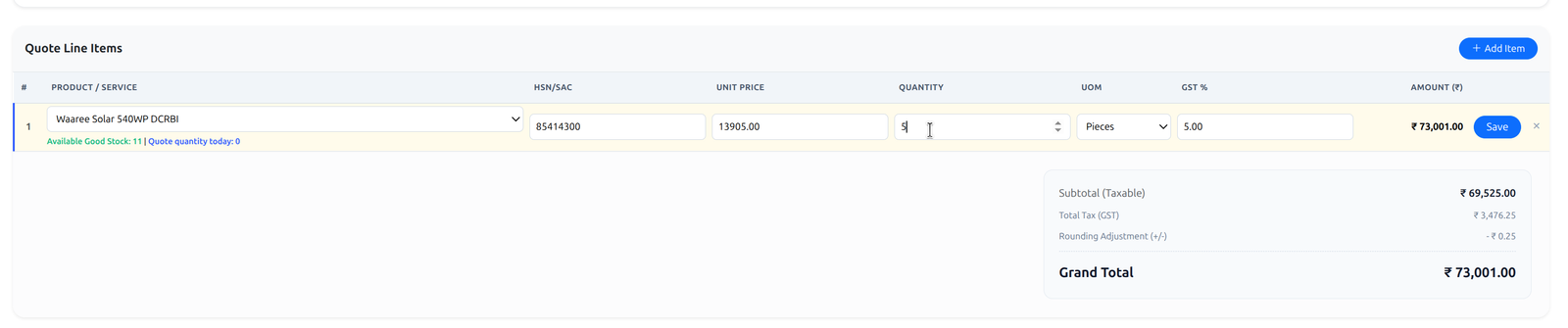
Enter the quantity. Prices can be modified based on your specific user permissions.
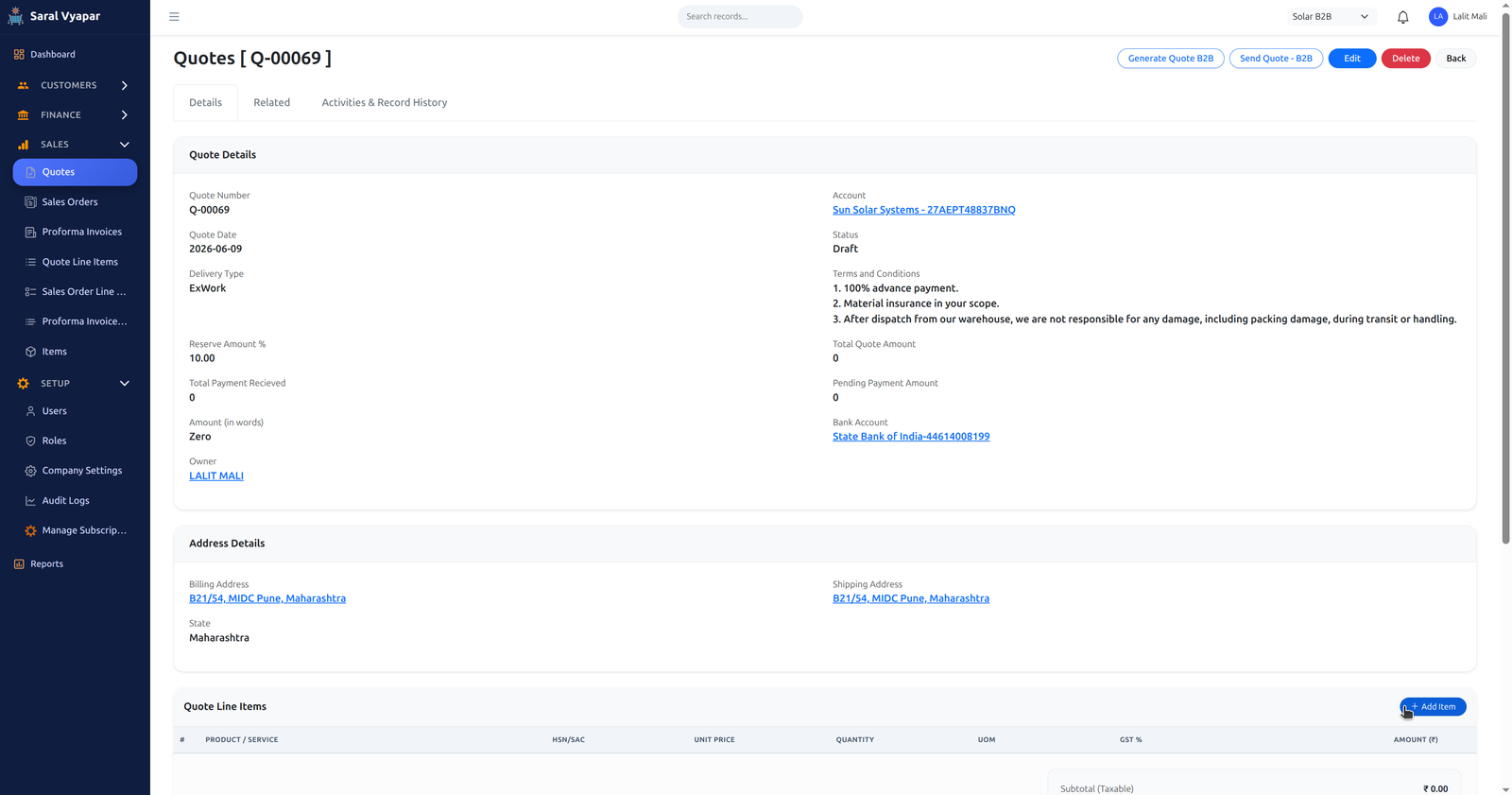
Click Save for the line item. You can add multiple items by repeating the process. As soon as an item is saved, the Quote Total Amount updates automatically.
Step 1.5: Generating & Sending the Quote
On the top right, click the Generate Quote button. This builds a standard formatted PDF with your company logo.

Review the quote preview, then click Save as Attachment and Confirm & Archive. Keep the default quote name, as it usefully contains the quote number, date, and version.
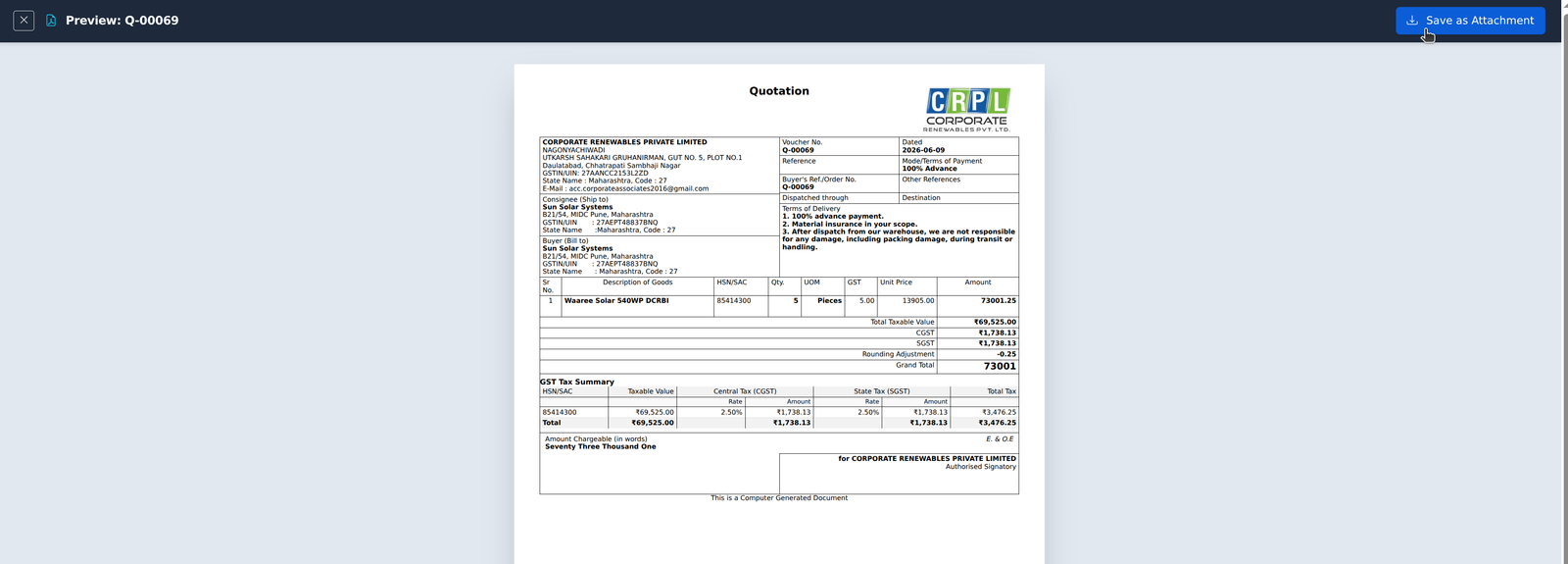
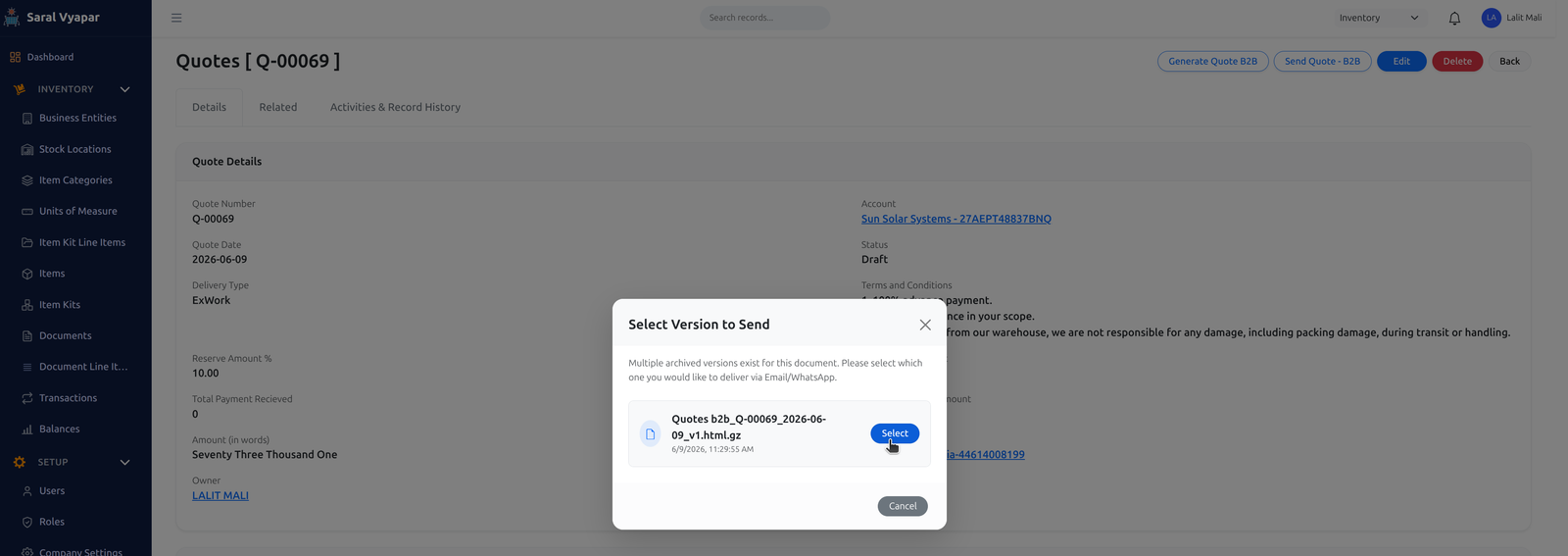
Close the preview. To send the quote to the customer via Email or WhatsApp, click the Send Quote button in the top right corner.

The system will prompt you to select the quote version. Always select the latest generated quote version file when sending.
2. Payment Receipt
After sending the quote and receiving payment from the customer, the next step is creating a Payment Receipt. You can view the list of payment receipts from the Payment Receipt tab.

Creating the Receipt
Open the respective Quote and go to its Related tab. Click on the + Add Payment Receipts button.
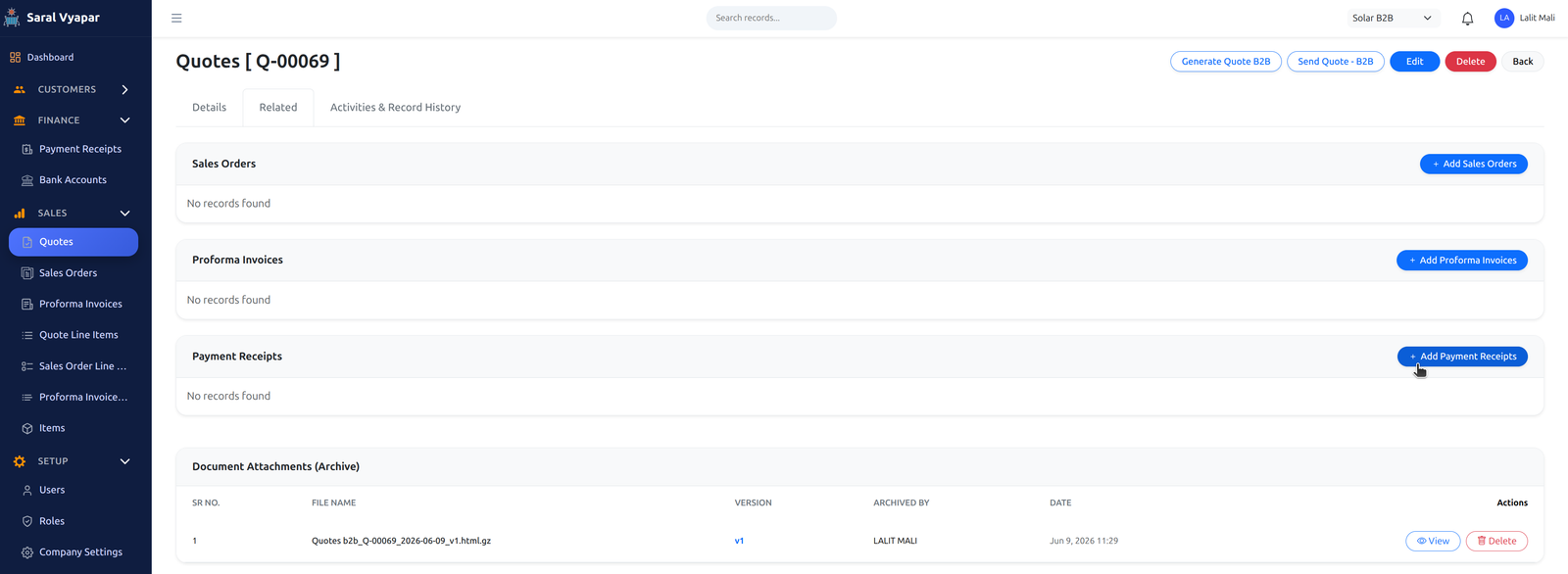
Fill in all details including the amount, transaction reference number, and attach the payment proof if available. Critically, set the Payment Status to Sent for approval. Keep the Verification Details section blank, as this is completed by the Accounts Department.
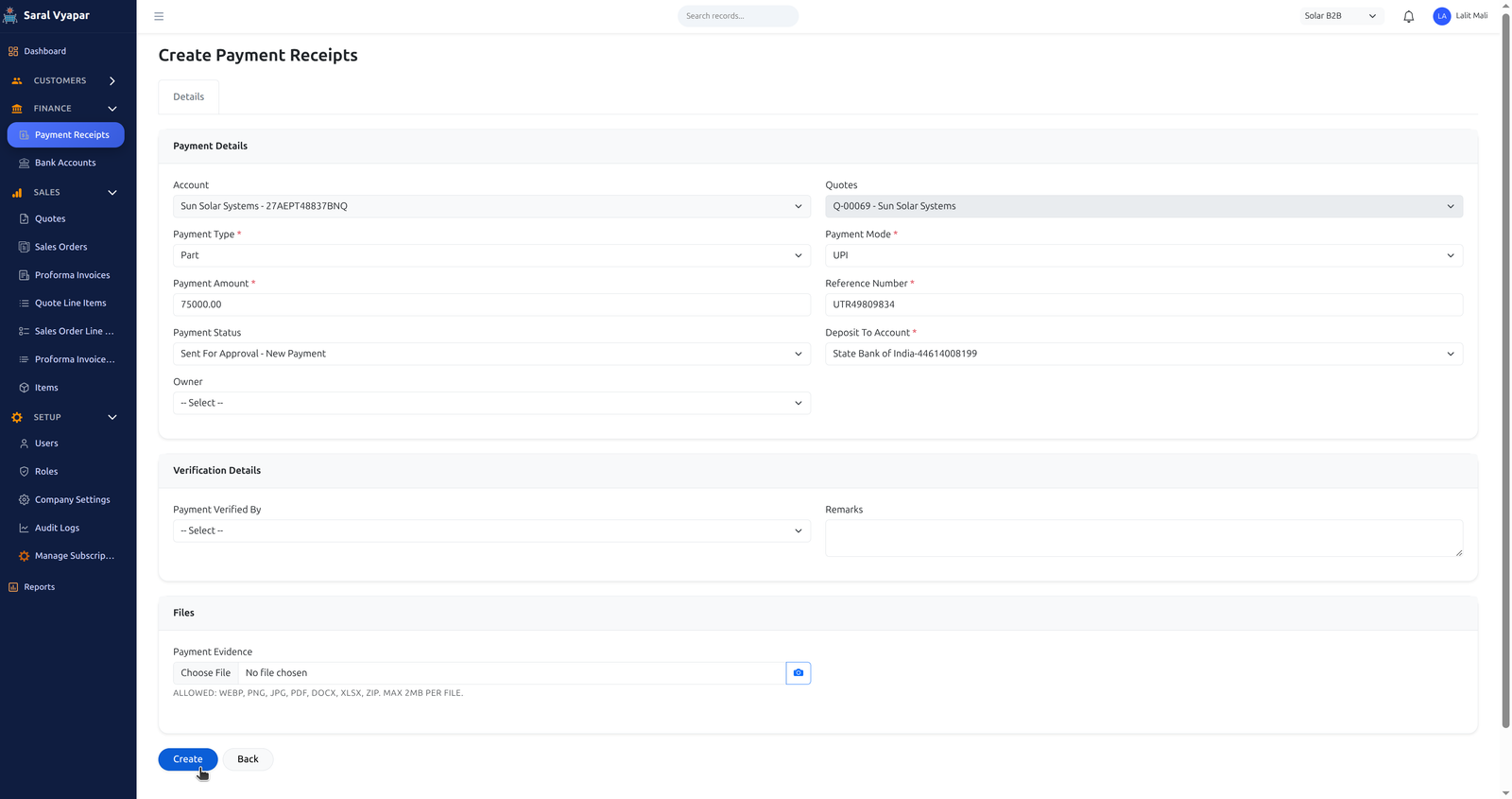
Then click Create.
3. Finance Operations (Verification)
The Accounts department now verifies the Payment Receipt against bank entries.


Once verified, the payment status will change to Approved.
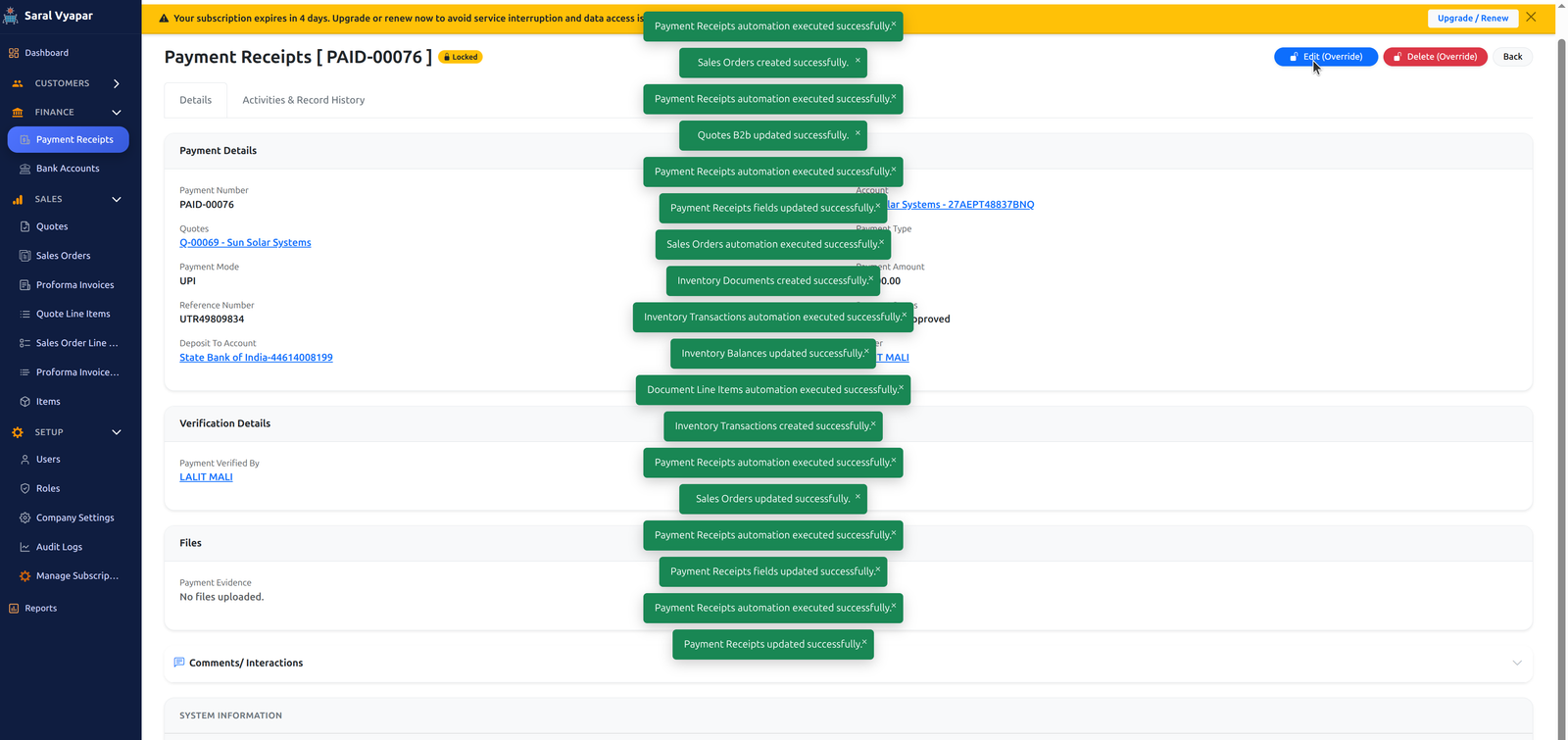
4. Sales Order
Once the payment is approved by Finance, the system automatically creates the Sales Order (SO) for that Quote.

Verifying the Sales Order
Click on the correct Sales Order number to view it. The Sales Order is a locked record and cannot be edited.
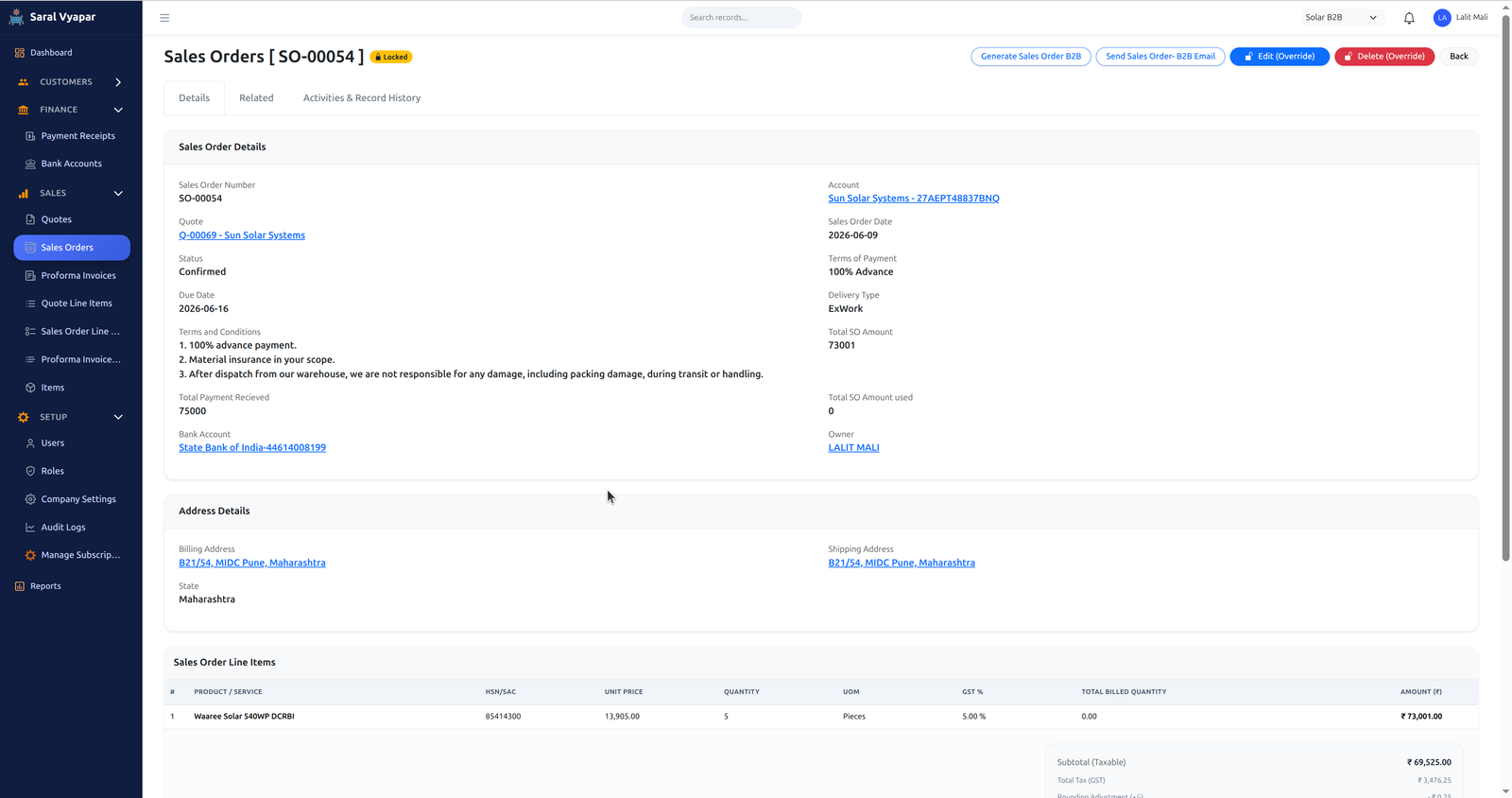
Similar to Quotes, you can send the Sales Order to the customer's account email using the Generate and Send options located in the top right corner.
5. Proforma Invoice (PI)
The PI facilitates the dispatch of materials against the approved Sales Order.
Step 5.1: Creating the PI
Go to the Related tab for the Sales Order and click the Add Performa Invoice button.
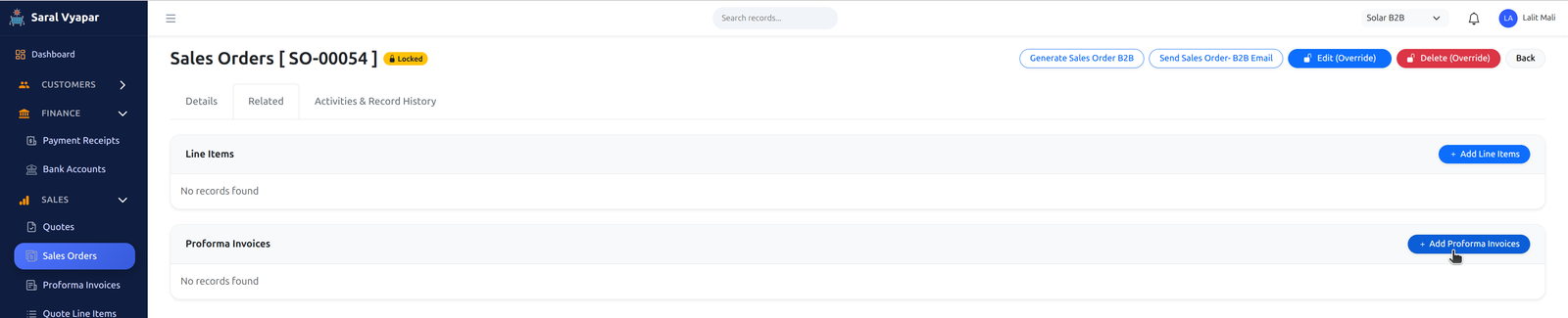
In the form, select the correct shipping address, and click the Create button at the bottom.
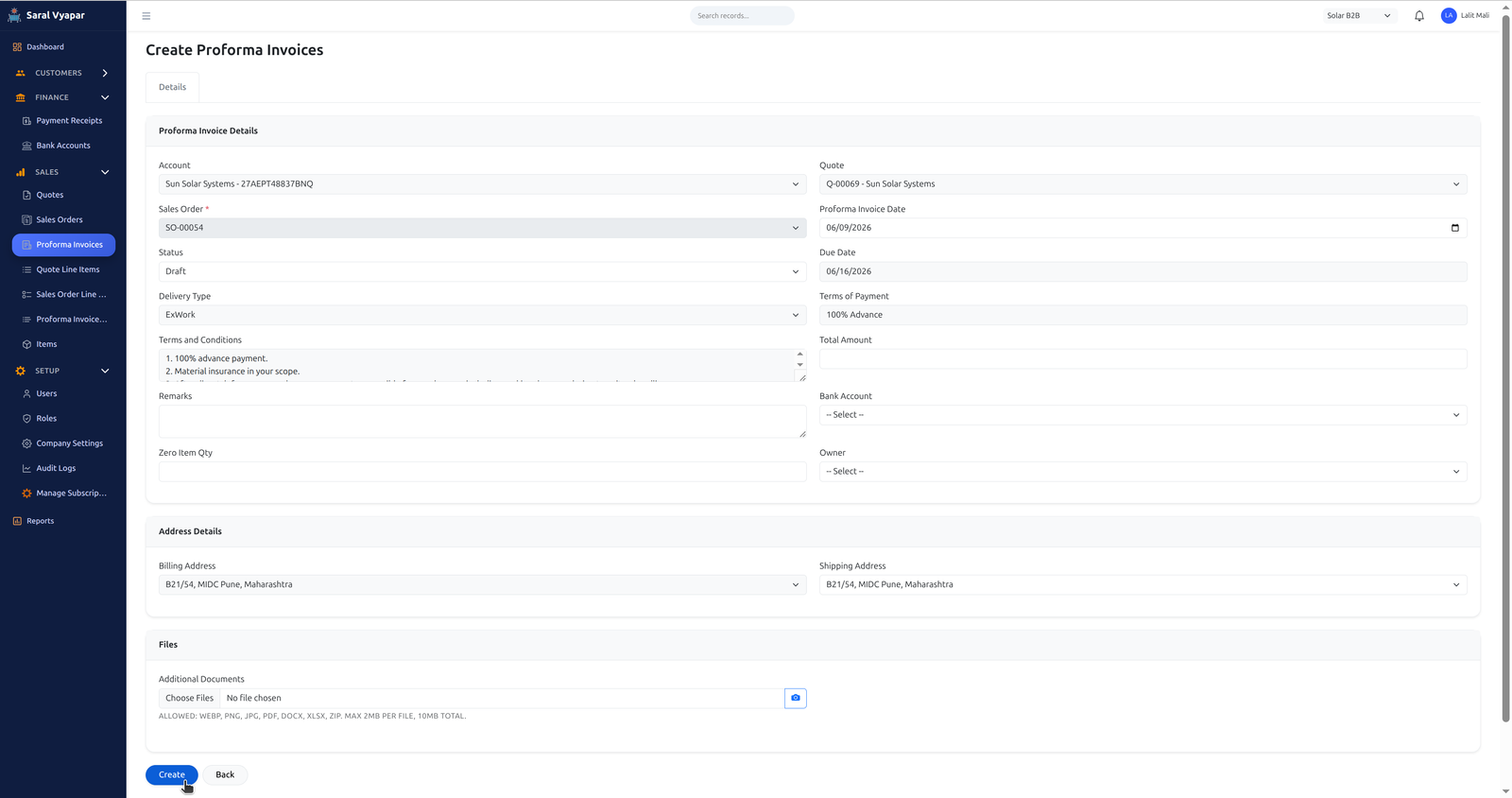
Step 5.2: Adjusting PI Quantities
Go to the Related tab of the Sales Order and click on the PI number to modify the quantity of line items. Click on the quantity to change it.
Update the quantity and click Update.
Similar to Quotes and SOs, you can send the PI to the customer using the Generate PI and Send PI buttons in the top right corner.
6. Generating Delivery Challan (DC)
The final physical movement of goods and deduction of inventory.
Step 6.1: Issuing the PI
Click on Edit PI and change its status to Issued. Once issued, the PI becomes locked and cannot be changed. This action triggers the generation of the Inventory Document.
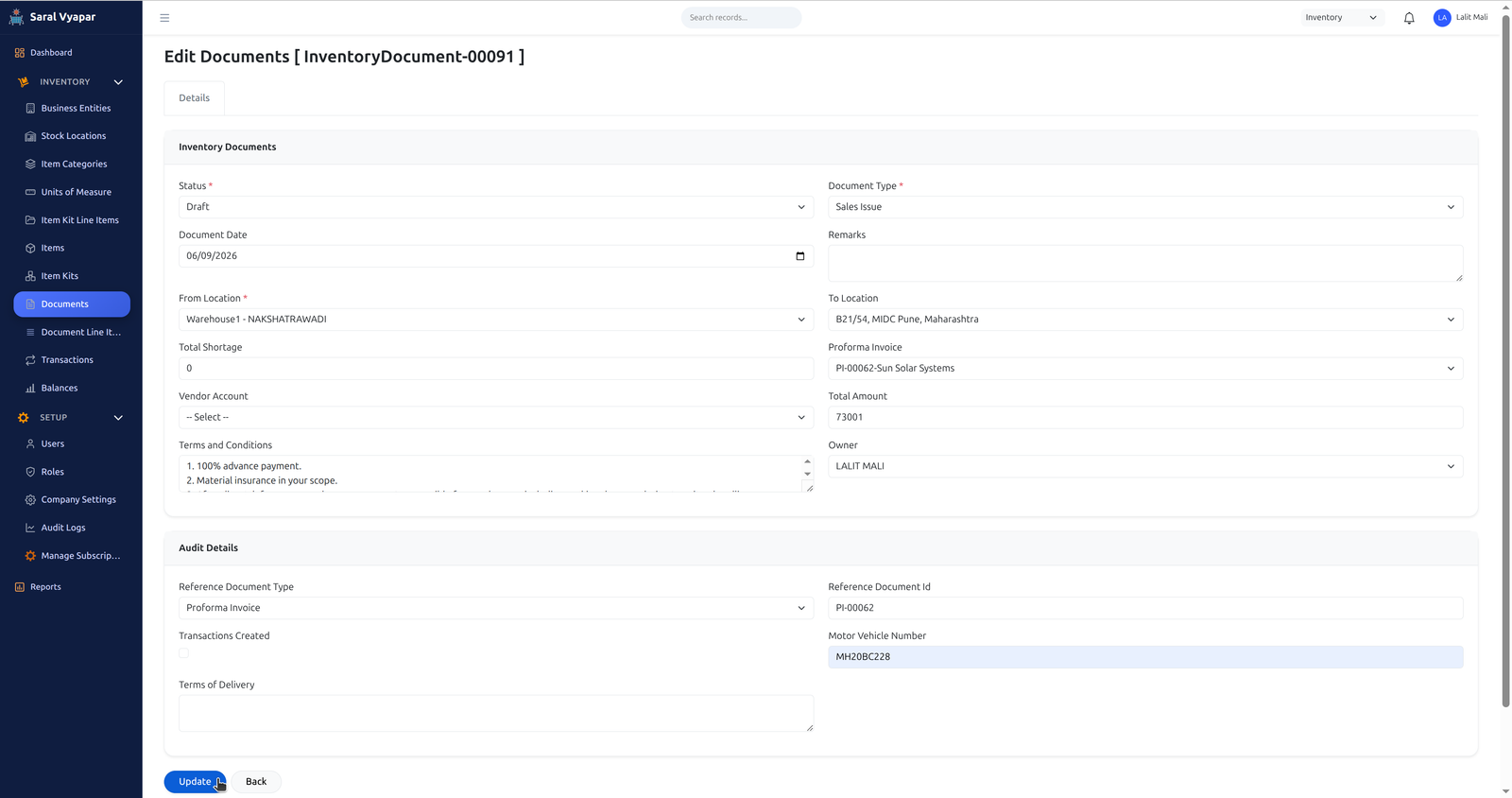
Step 6.2: Posting the Inventory Document
The inventory delivery person will now find the Inventory Document in Inventory -> Documents (ensure you have switched to the Inventory app).
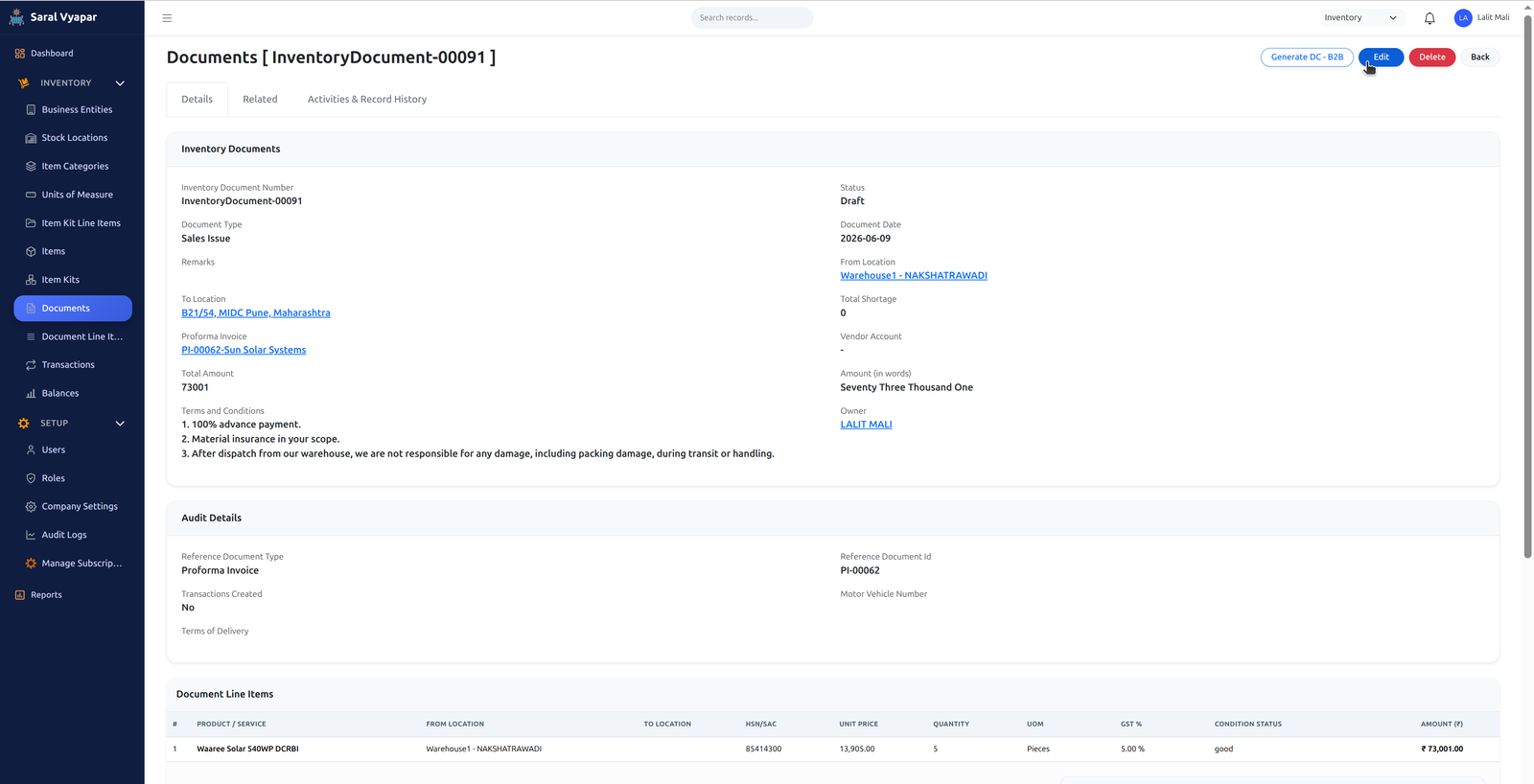
Click the document number, click Edit, and change the status to Posted. You must add the Vehicle Number from which the material is being delivered. Click Update. Once Posted, it cannot be edited.
Step 6.3: Generating the DC
On the top right corner, click the Generate DC button. Save it, then click Send to dispatch the DC to the customer via email and WhatsApp.
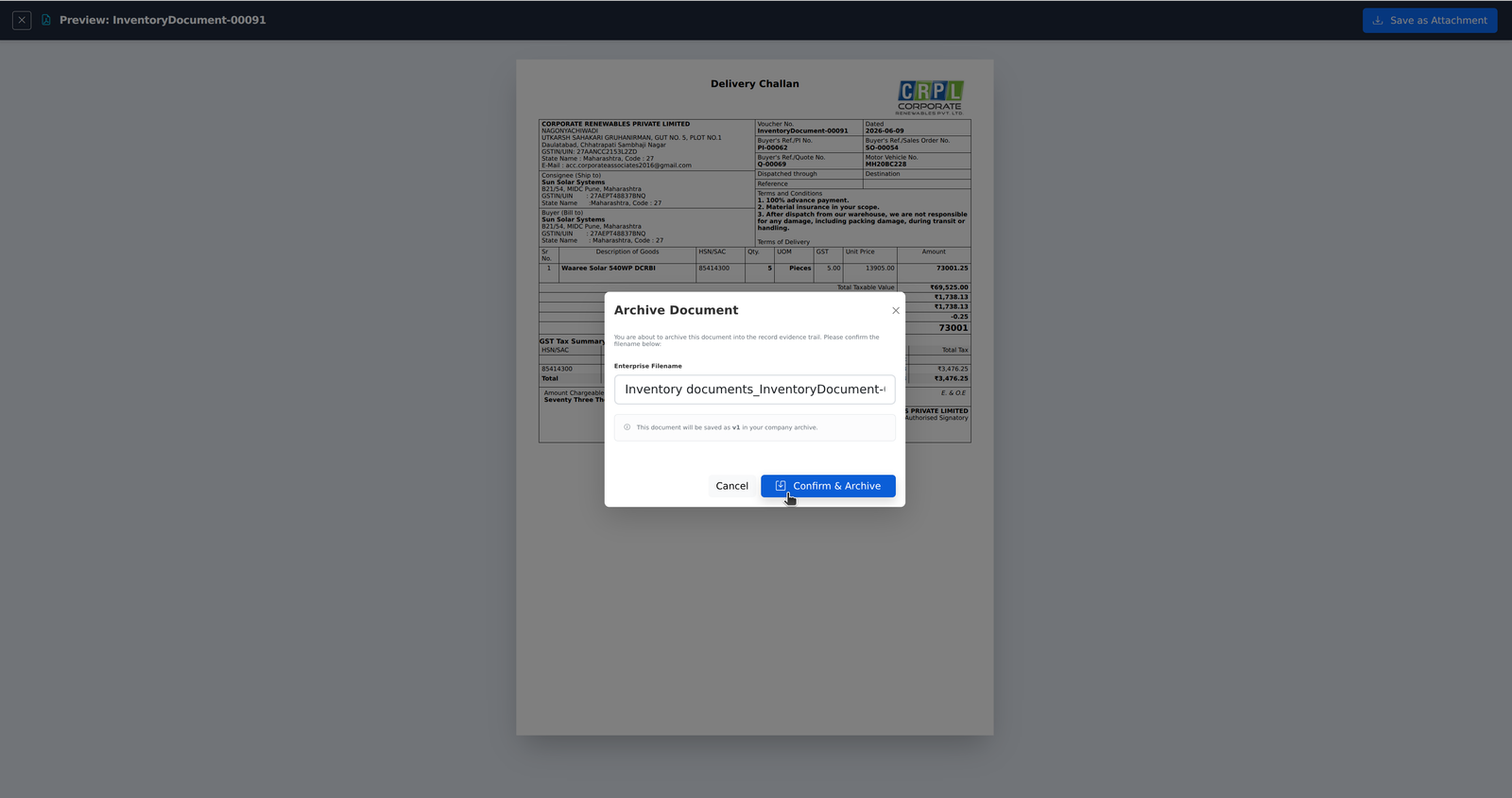
Result: Once the Inventory Document status changes to "Posted", inventory balances are automatically updated and deducted in the system.
Frequently Asked Questions (FAQ)
Q: What is the alternate method to generate a quote?
A: While you can navigate to Sales -> Quote -> Create quote, the recommended approach is going to the Account's Related Tab. This automatically links the Quote to the correct B2B customer record, saving time.
Q: Why is my Sales Order locked and uneditable?
A: The Sales Order represents a finalized financial agreement based on an approved payment. To maintain audit trails and inventory integrity, the system locks it. Any changes require creating a new quote or an authorized cancellation flow.
Q: Can I dispatch more quantity in the PI than what is in the Sales Order?
A: No. The Proforma Invoice is strictly bound by the line items and total value of the Sales Order. You can dispatch partial quantities, but you can never exceed the total authorized amount.